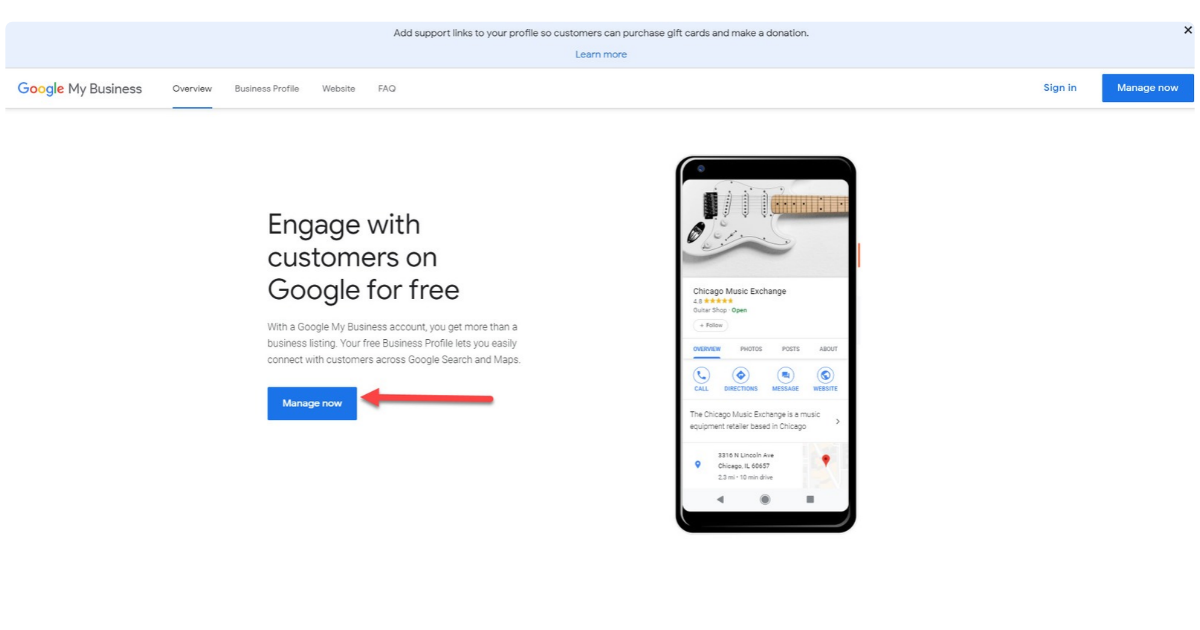
How google business profile setup for free
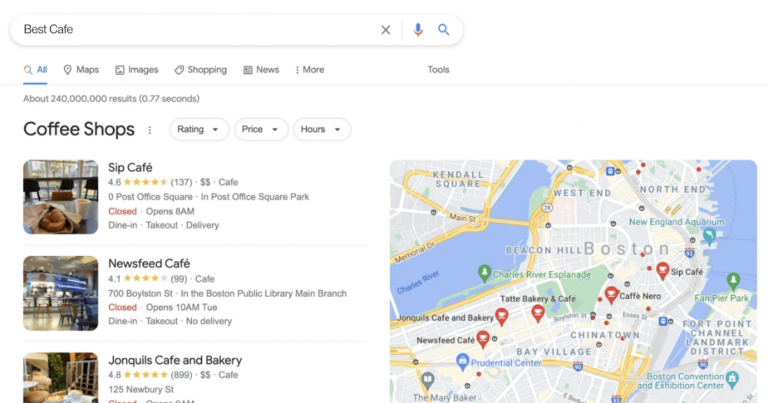
If you run a local business, having a Google Business Profile can make it much easier for customers to find you online. Your profile can appear when people search for your business on Google Search or look for businesses nearby on Google Maps.
The good news is that setting up a Google Business Profile is free. You don’t need to pay Google just to create or maintain your profile.
In this guide, we’ll walk through how to set up a Google Business Profile for free and share some simple tips to make your profile more useful to potential customers.
What Is a Google Business Profile?
A Google Business Profile is a free business listing that allows you to manage how your business information appears on Google Search and Google Maps.
Depending on your business and Google’s features available in your region, your profile can display information such as:
- Business name
- Business category
- Address or service area
- Phone number
- Website
- Opening hours
- Photos
- Customer reviews
- Products or services
- Business description
Think of it as your business’s public information page on Google.
Is Google Business Profile Really Free?
Yes. Creating a Google Business Profile is free.
You don’t need to pay a monthly fee to create the profile or have your basic business information appear on Google.
However, some businesses choose to spend money on services such as advertising, professional profile management, website development, or SEO. These are separate from creating the Google Business Profile itself.
How to Set Up a Google Business Profile for Free
Step 1: Go to Google Business Profile
Start by visiting Google’s official Business Profile page and sign in with the Google account you want to use to manage the business.
It’s generally a good idea to use a business-controlled Google account rather than an employee’s personal account.
Step 2: Find or Add Your Business
Search for your business name.
If your business already has a listing, you may be able to claim and manage it.
If you don’t find an existing listing, select the option to add your business to Google.
Before creating a new profile, make sure you haven’t accidentally created a duplicate listing.
Step 3: Enter Your Business Name
Enter your business name as it is used in the real world.
Avoid adding extra keywords, locations, slogans, or promotional phrases to your business name simply because you think they will help your ranking.
Your business name should accurately represent the actual business.
Step 4: Choose the Right Business Category
Choosing the right primary category is an important part of setting up your profile.
Select the category that most accurately describes what your business does.
For example, a bakery should choose a relevant bakery category rather than selecting an unrelated category because it seems popular.
You may also be able to add additional categories that accurately describe other services your business provides.
Step 5: Add Your Business Location
If customers visit your business at a physical location, enter the address where your business operates.
If you operate as a service-area business and don’t serve customers at your address, Google may allow you to hide your address and specify the areas you serve instead.
Choose the option that accurately reflects how your business operates.
Step 6: Add Your Contact Information
Enter your business phone number and website information, if applicable.
Make sure the information is accurate and regularly updated.
Customers should be able to use these details to contact your business without confusion.
Step 7: Add Your Business Hours
Add your regular opening hours.
If your business has different hours on weekends or holidays, make sure those are reflected appropriately.
Keeping your hours updated is important because customers often check Google before visiting a business.
Step 8: Verify Your Business
Google may require you to verify that you are authorized to manage the business.
The verification method can vary depending on the business and Google’s available options.
Follow the verification instructions shown in your Google account.
Don’t create multiple profiles simply because verification isn’t immediately available. Follow Google’s instructions and use the verification option provided for your business.
Step 9: Complete Your Profile
Once your profile is verified, add as much accurate information as is relevant to your business.
Consider adding:
- High-quality business photos
- Services
- Products, where applicable
- Business description
- Updated opening hours
- Relevant contact information
A complete profile gives potential customers more information before they decide to contact or visit you.
How to Optimize Your Google Business Profile
Creating a profile is only the beginning. Keeping it accurate and useful is just as important.
Use Accurate Business Information
Make sure your business name, address, phone number, website, and hours are correct.
If something changes, update your profile rather than leaving outdated information online.
Add Real Business Photos
Photos can help customers understand what your business looks like and what you offer.
Depending on your business, you might add photos of:
- Your storefront
- Interior
- Team
- Products
- Completed work
- Services
- Facilities
Use genuine photos that represent your actual business.
Add Your Services
If your profile allows you to add services, include the services you actually provide.
Write clear descriptions that help customers understand what each service involves.
Avoid filling your profile with unrelated keywords.
Ask Customers for Genuine Reviews
Customer reviews can help people understand what it is like to do business with you.
If you want more reviews, you can politely ask genuine customers to share their experience.
Don’t buy fake reviews or offer misleading incentives in exchange for positive reviews. Reviews should represent real customer experiences and follow Google’s policies.
Respond to Reviews
Take time to respond to customer reviews when appropriate.
A simple, professional response can show that you pay attention to customer feedback.
For negative reviews, avoid arguments or personal comments. Keep your response professional and try to move the conversation toward resolving the issue.
Keep Your Profile Updated
Your Google Business Profile shouldn’t be something you create once and forget.
Update important information when your business changes, including:
- Opening hours
- Holiday hours
- Phone numbers
- Services
- Photos
- Business information
Regular maintenance can also reduce the chance of customers seeing outdated information.
Can a Google Business Profile Improve Local SEO?
A well-maintained Google Business Profile can be an important part of a local SEO strategy.
However, simply creating a profile does not guarantee that your business will appear at the top of Google Search or Google Maps.
Local search visibility can depend on several factors, including the relevance of the business to the search, the searcher’s location, competition, the information available about the business, and other signals used by Google’s systems.
That’s why it’s better to think of your Google Business Profile as one part of your overall local online presence rather than a guaranteed shortcut to higher rankings.
Common Google Business Profile Mistakes to Avoid
Here are some mistakes businesses should try to avoid:
Creating Duplicate Profiles
Having multiple profiles for the same business can create confusion and may violate Google’s guidelines.
Using Keywords in the Business Name
Don’t add unnecessary keywords or locations to your business name just to try to improve rankings.
Adding Incorrect Information
Incorrect phone numbers, addresses, or opening hours can lead to a poor customer experience.
Buying Fake Reviews
Fake reviews can damage trust and may violate Google’s policies.
Ignoring Customer Reviews
Leaving genuine customer questions or feedback unanswered can make your business profile look neglected.
Using Fake Business Photos
Use authentic images that actually represent your business.
How Long Does Google Business Profile Setup Take?
The time required can vary depending on the business and whether Google requires verification.
For a straightforward business, entering the basic information may not take very long. However, completing verification and properly filling out the profile can take additional time.
The important thing is to provide accurate information rather than rushing through the setup.
Final Thoughts
Setting up a Google Business Profile for free is one of the simplest ways for a local business to establish a presence on Google Search and Google Maps.
The setup itself doesn’t require a paid Google subscription. What matters most is providing accurate business information, choosing the appropriate category, completing verification, adding useful details, and keeping the profile updated.
A Google Business Profile isn’t a guarantee of higher rankings or more customers, but a complete and accurate profile can give potential customers useful information when they’re searching for businesses like yours.
If you haven’t created your profile yet, starting with the free setup and making sure your information is accurate is a good first step toward building your local online presence.